1. Student Information
Icon
Report Information
- Fee category wise student list
- House wise student list
- Category wise student list
- Transport Type
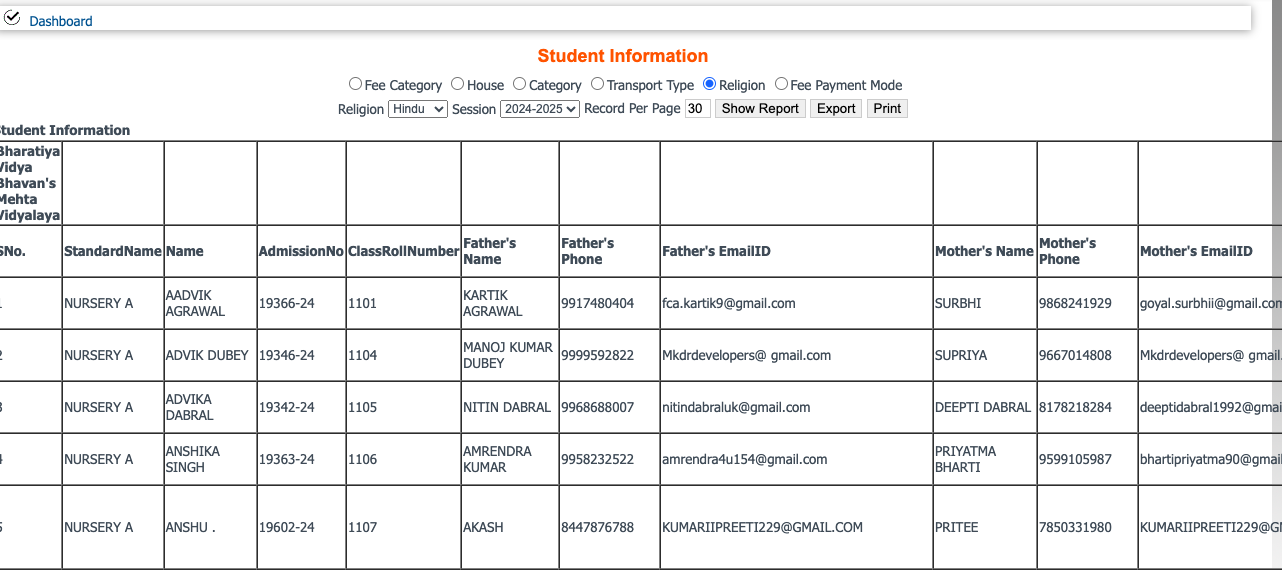
- Religion wise student list
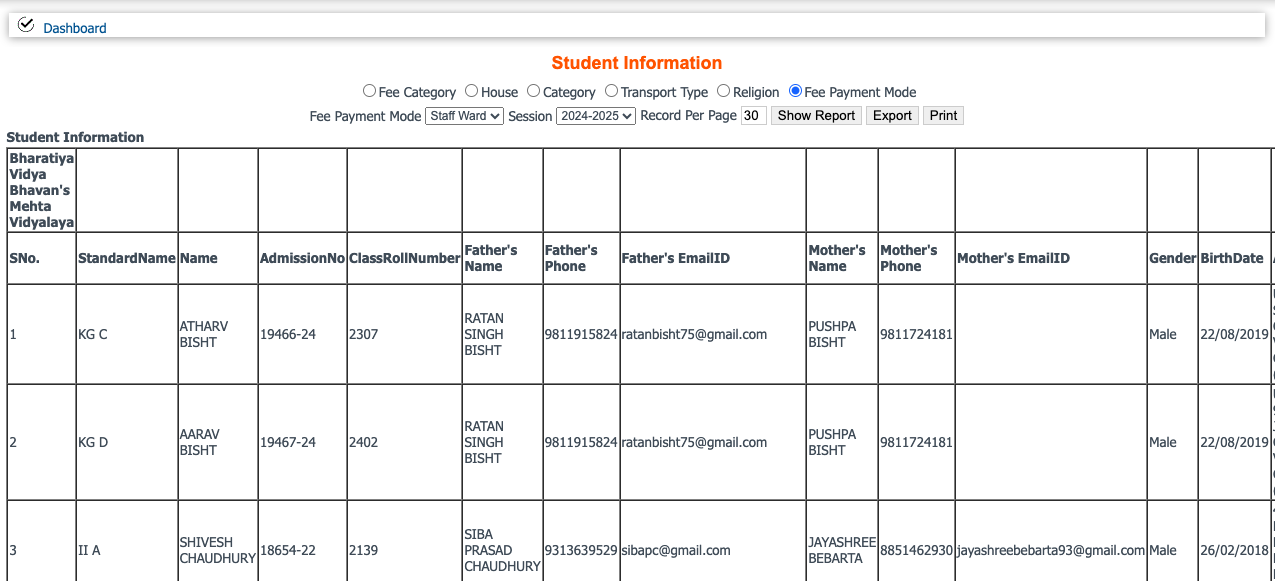
- Fee payment mode wise student list
Process:-
Click on the icon and select the radio button according to your requirement. Select fee category, session and click on Show Report.
Outcome:-
Fee Category wise details
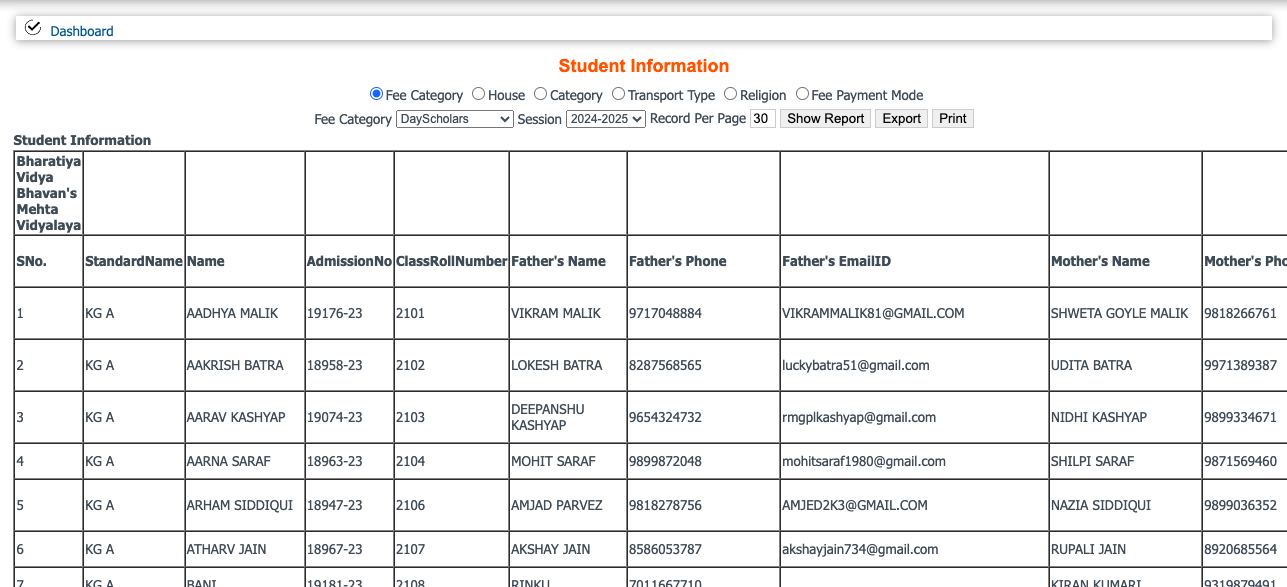
House wise details
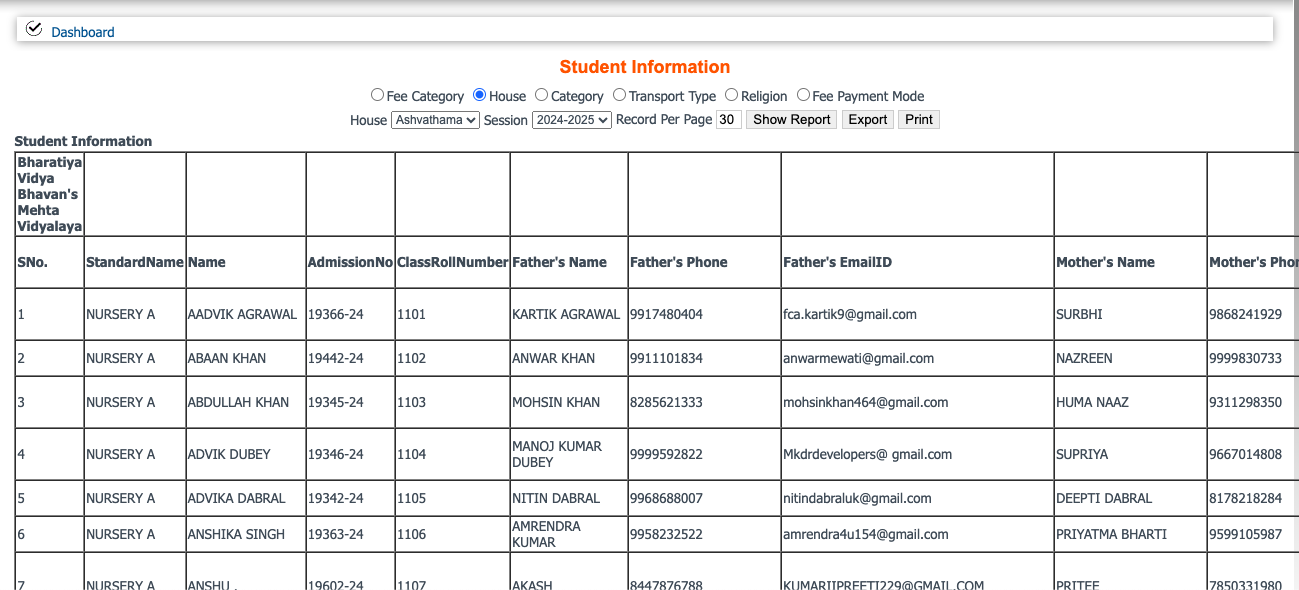
Category wise details
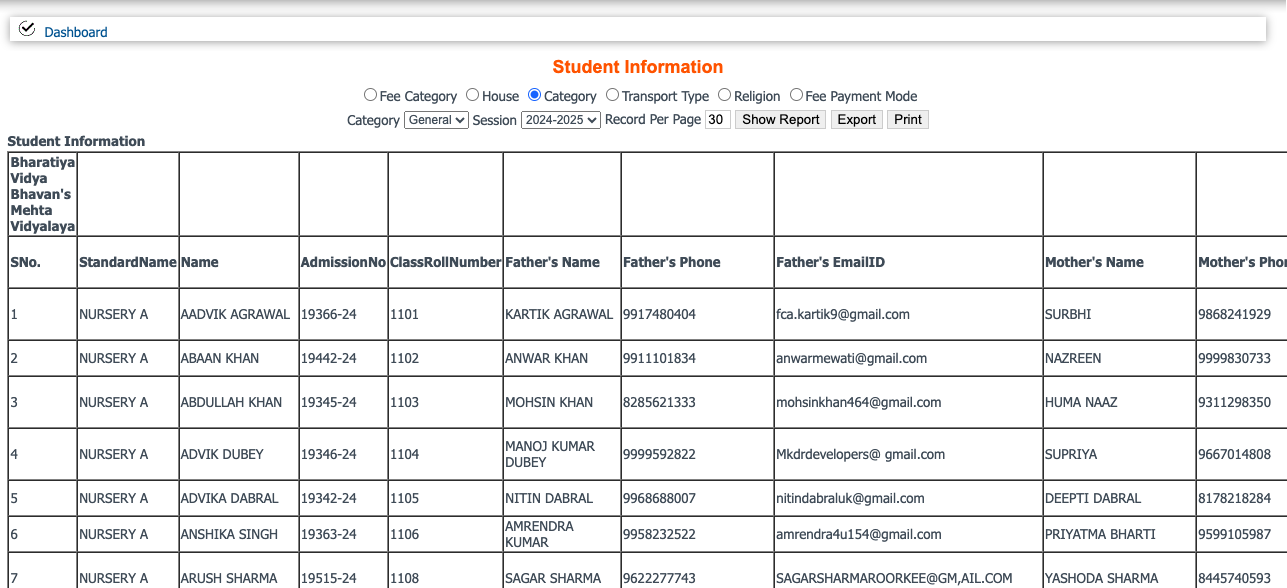
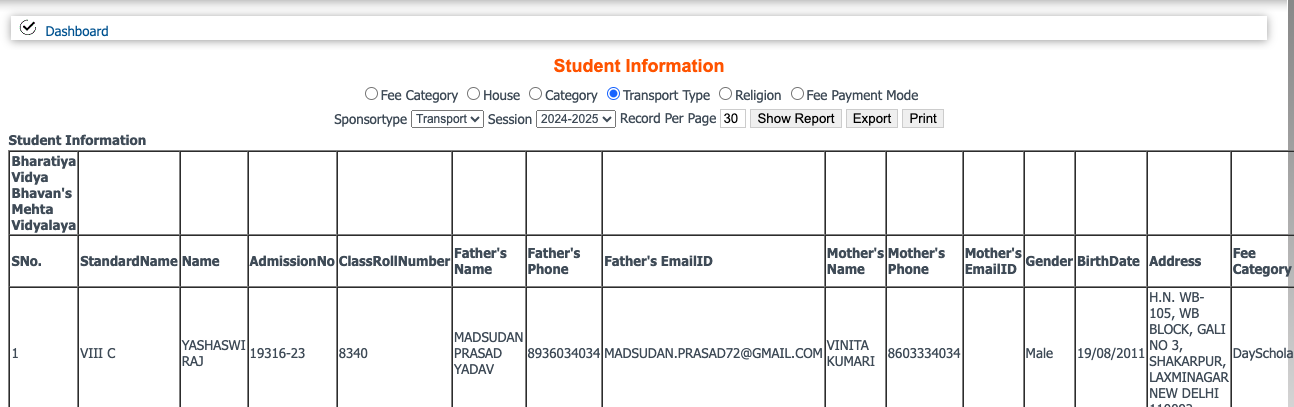
Transport Type
Religion wise student details
Fee payment mode student information
2. Student Details
Icon
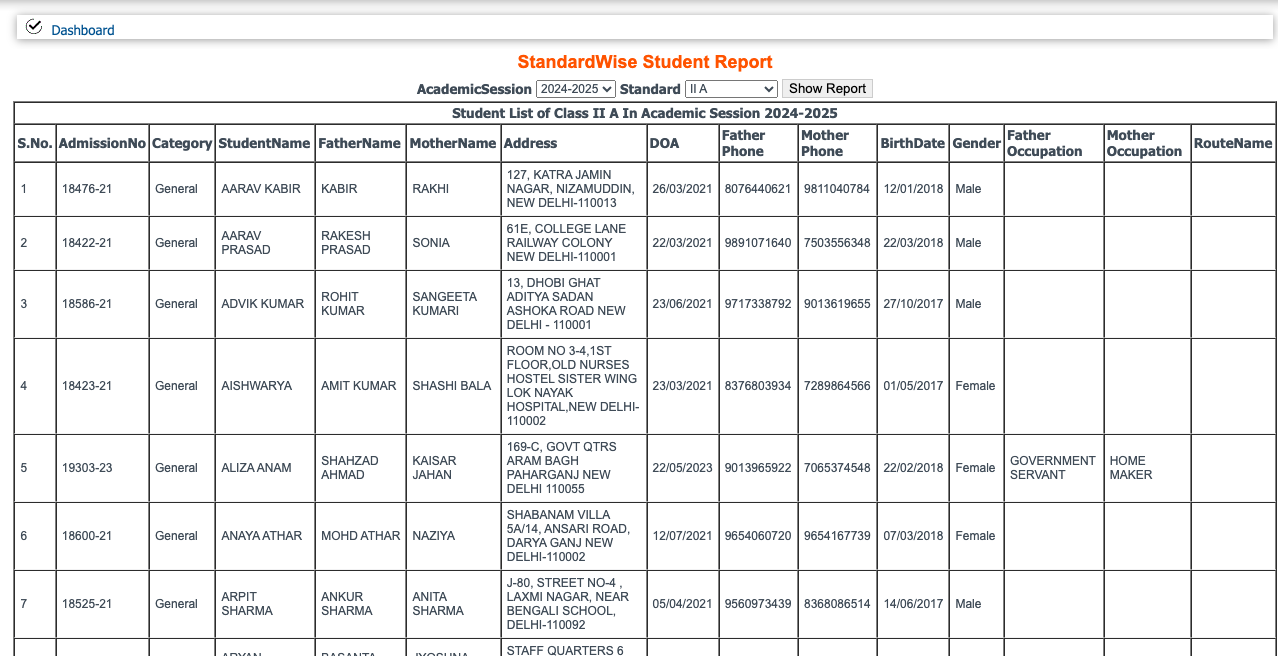
Process:-
Click on the icon select the session and standard and click on Show Report.
Outcome:-
3. Student Strength
Icon

Report Information:-
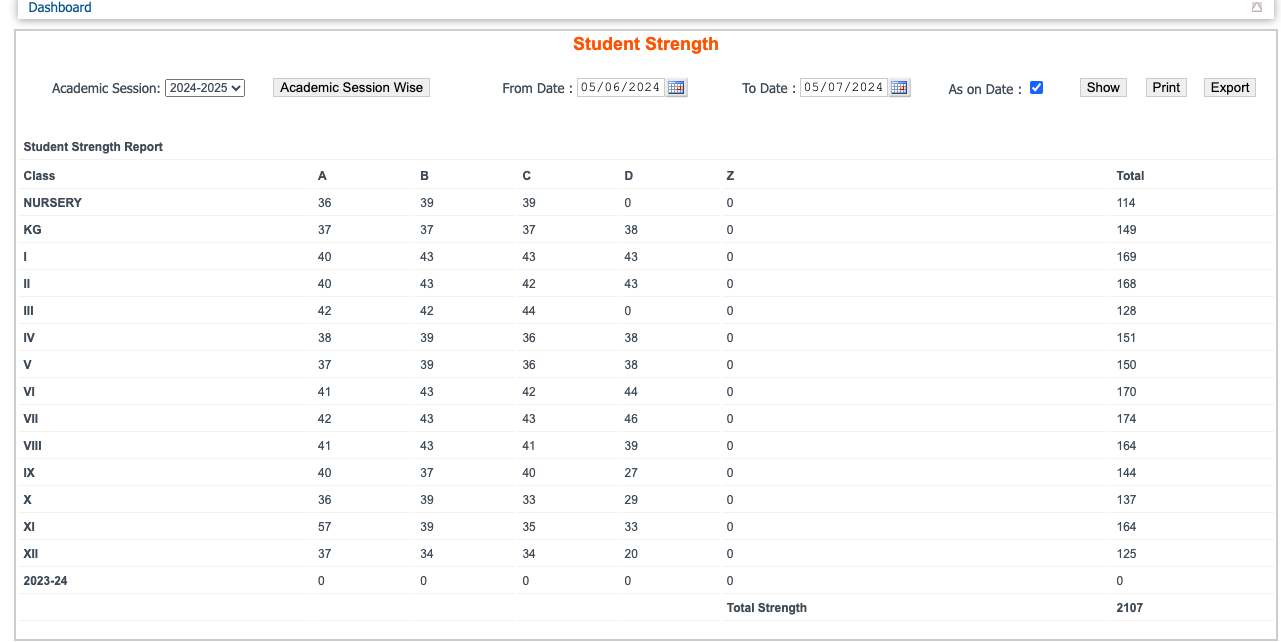
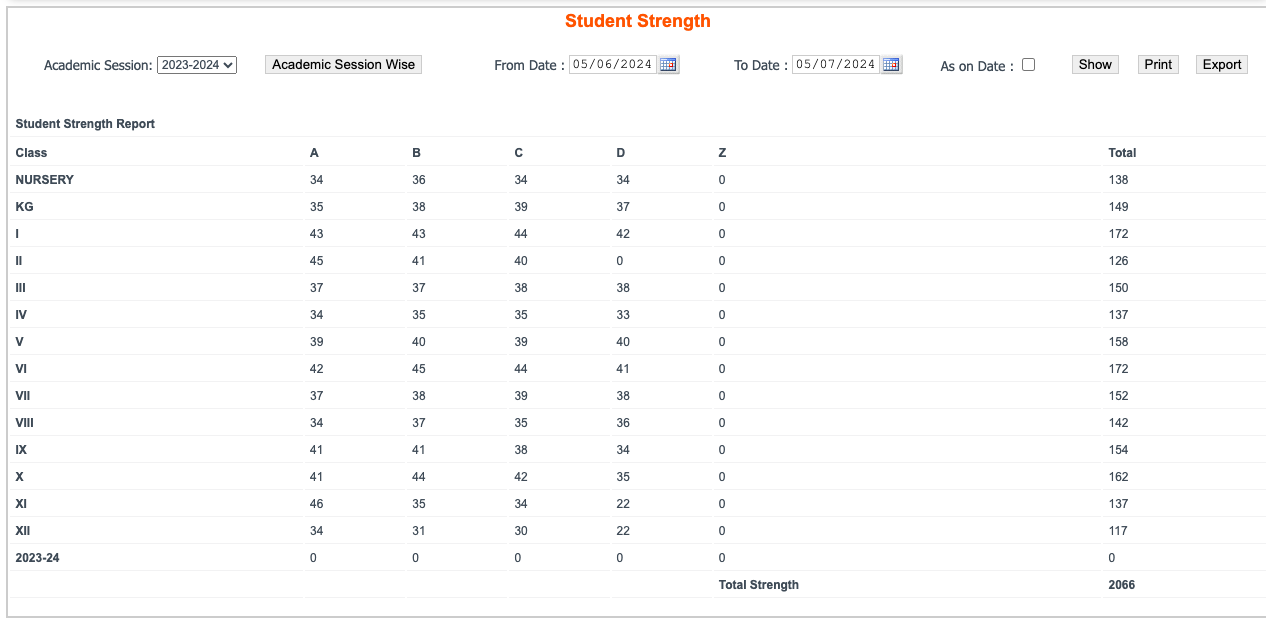
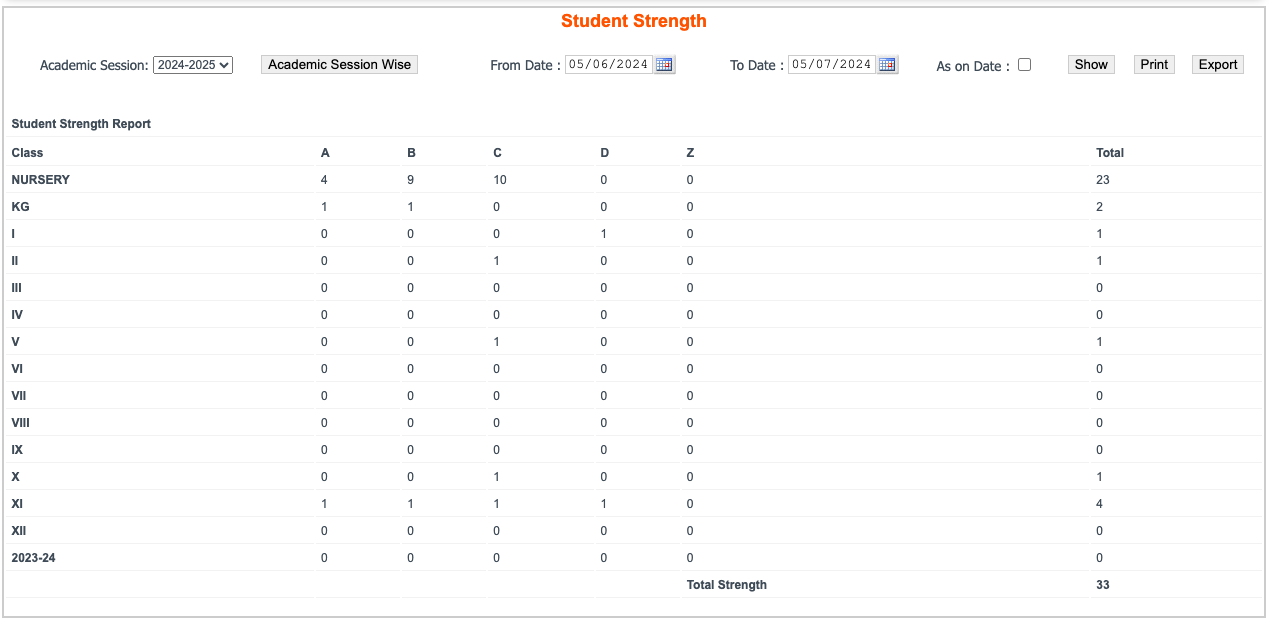
- Date range wise student strength list
- As on date student detail
- Academic session wise student list
Process:-
Click on the icon choose the option as per your requirement and click on show button.
Outcome:-
As on date:-
Academic session wise
Date Range wise
4. Standardwise New Admission
Icon
Report Information:-
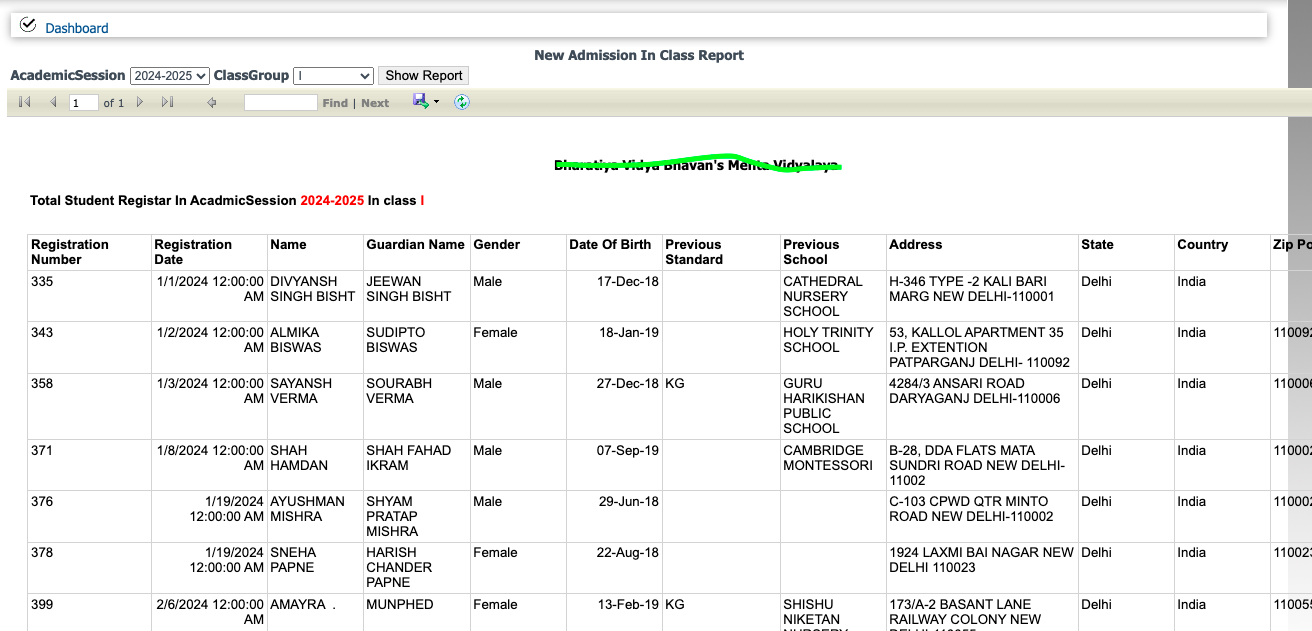
- Session wise new admission student
- Standard wise new students
- Registration Number
- Registration Date
- Student personal details
Process:-
Click on the icon select the session, standard & click on Show Report button.
Output:-
Note- need to add admission no. column
5. Boys Girl Strength
Icon

Report Information:-
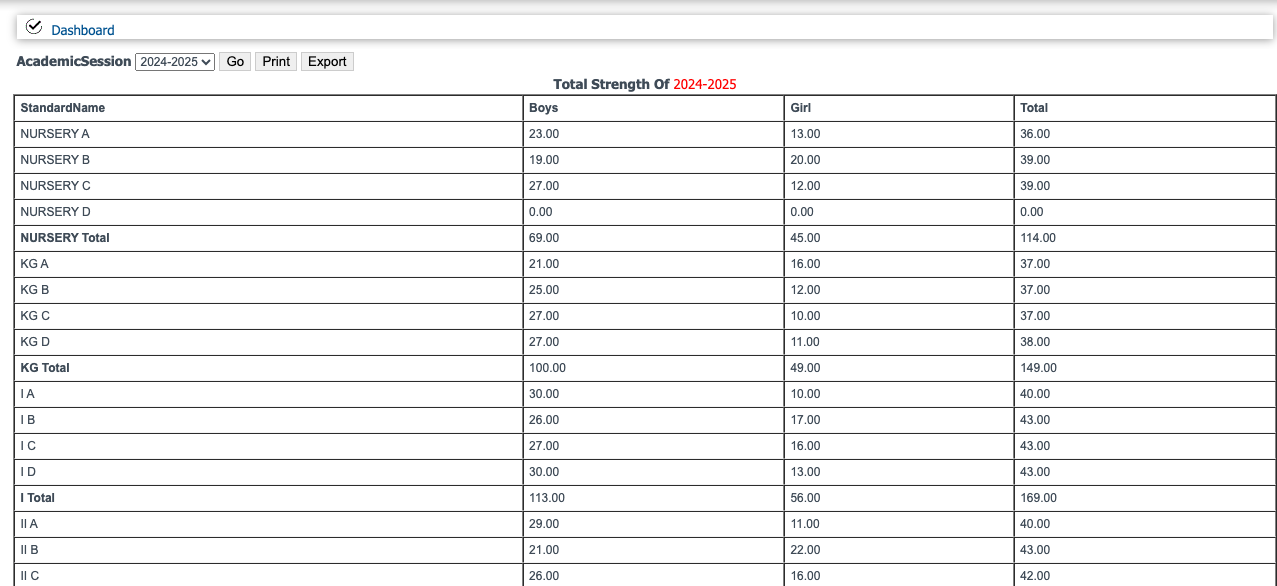
- Standard & section wise boys strength
- Standard & section wise girl strength
- Total student
Process:-
Click on the icon select the session and click on Go button. You can print & export this report in excel format.
Outcome:-
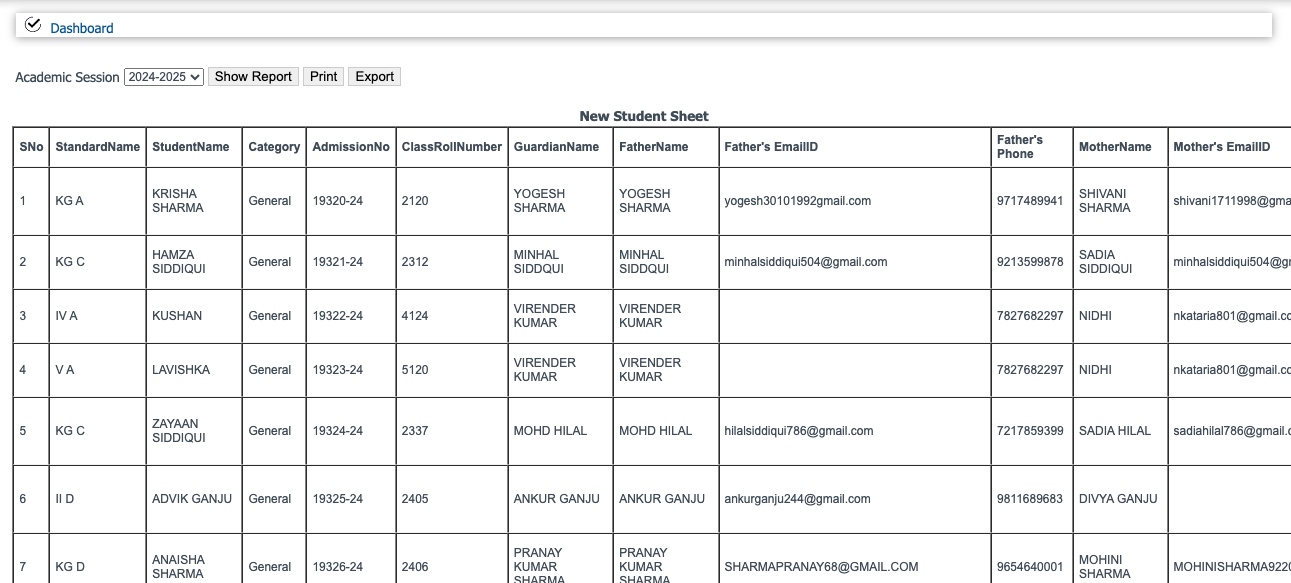
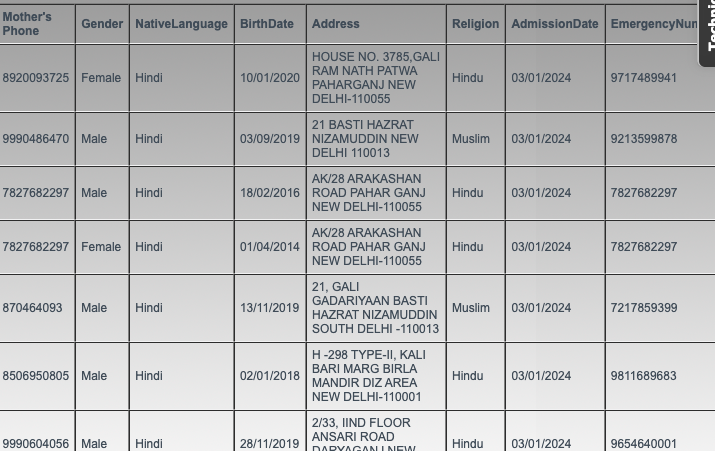
6. New Admission Student
Icon
Report Information:-
- Session wise new admission student detail
Process:-
Click on the icon select the session & click on the Show Report button.
Outcome:-
7. School Session Category
Icon
Report Information:-
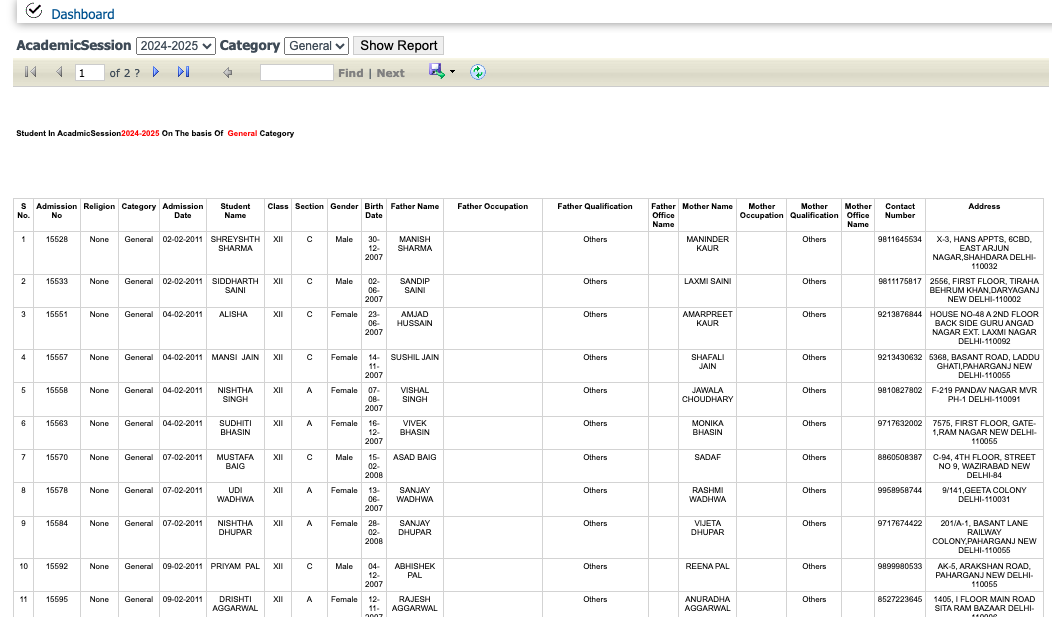
- Category wise student report (General, ST, SC, OBC)
- Session wise student category report
Process:-
Click on the icon choose the academic session, Category and click on the Show Report.
Outcome:-
8. Session Registration
Icon
Report Information:-
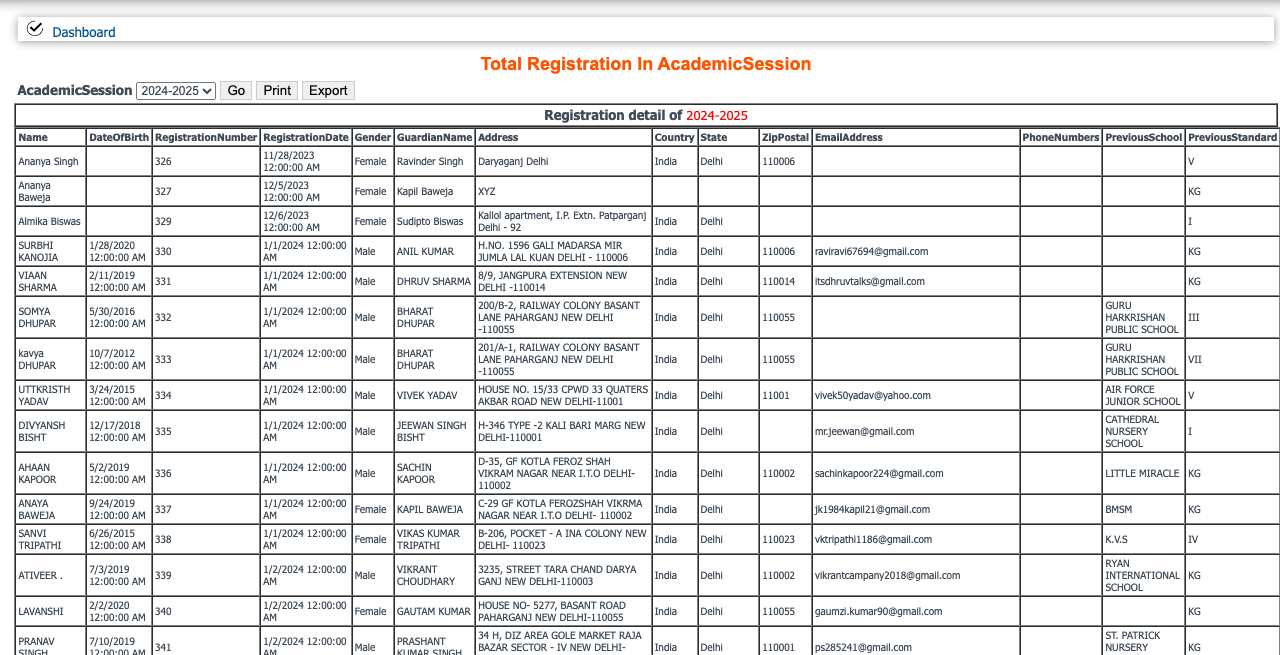
- Session wise student registration report
Process:-
Click on the icon select the academic session and click on the Go button.
Outcome:-
9. SLC Details
Icon
Report Information:-
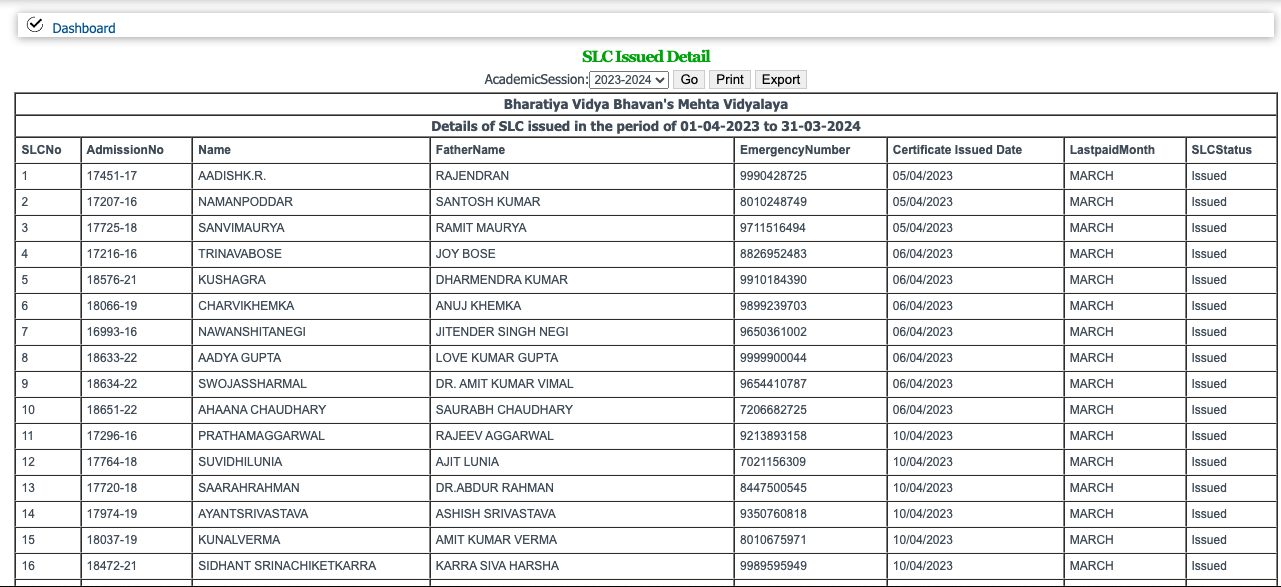
- Session wise SLC issued student details
Process:-
Click on the icon select the academic session and click on the Go button.
Outcome:-
10. Standard Student
Icon

Report Information:-
- Session wise & Standard wise student detail
Process:-
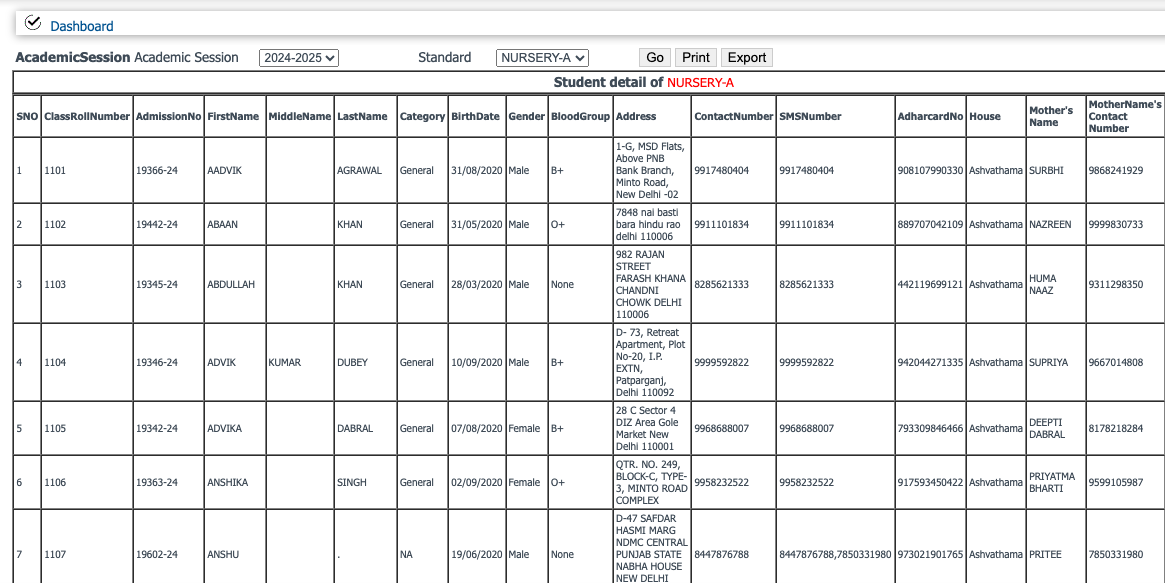
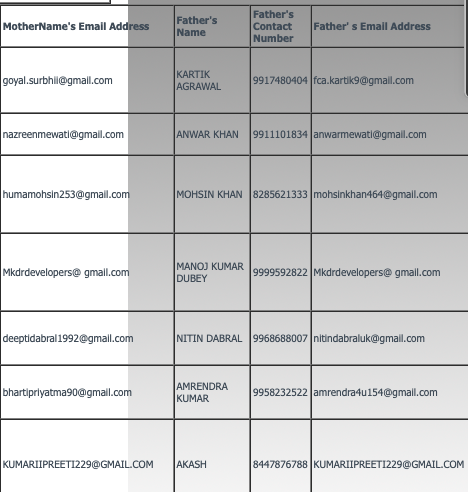
Click on the icon select the academic session, standard and click on Go button.
11. Student Detail Particular
Icon
Report Information:-
- Student Name
- Father Name
- Mother Name
- Admission no.
- Roll no.
- Gender
- Address
- Birth date
- Join Date
- Contact number
Process:-
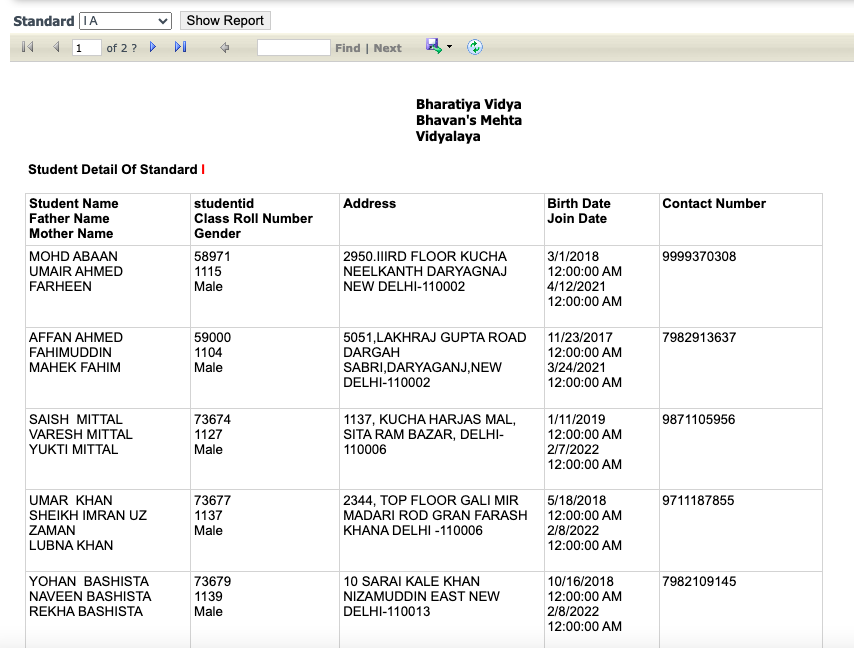
Click on the Icon, select standard and click on Show Report button.
Output:-
12. Session Student Detail
Icon
Report Information:-
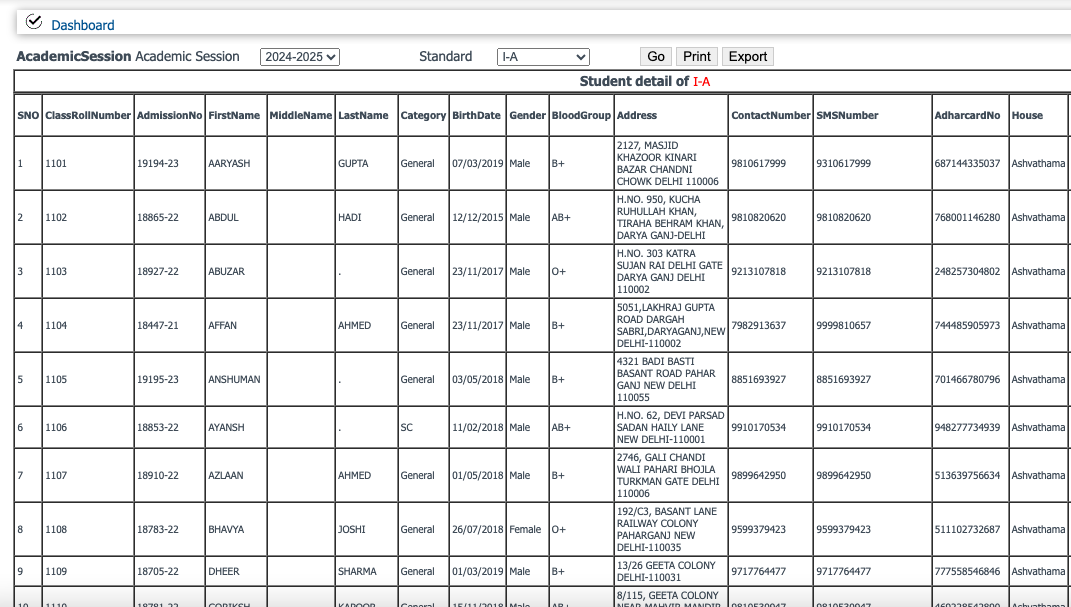
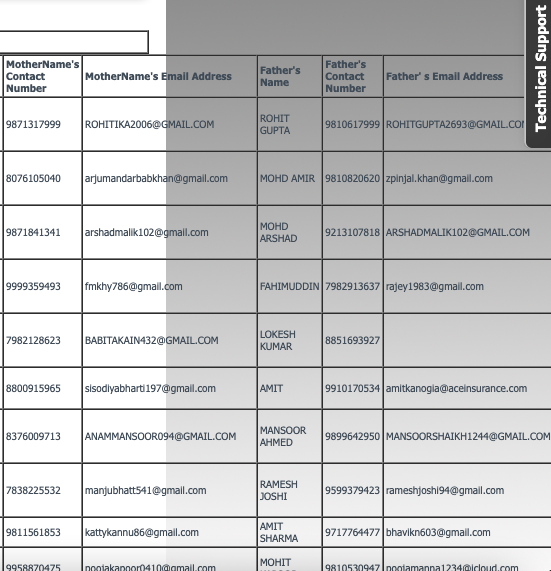
- Session wise student detail
- Standard wise student detail
- Report Print option
- Report export option in excel
Process:-
Click on the icon choose academic session, standard and click on Go button. For print this report click on Print button.
Outcome:-
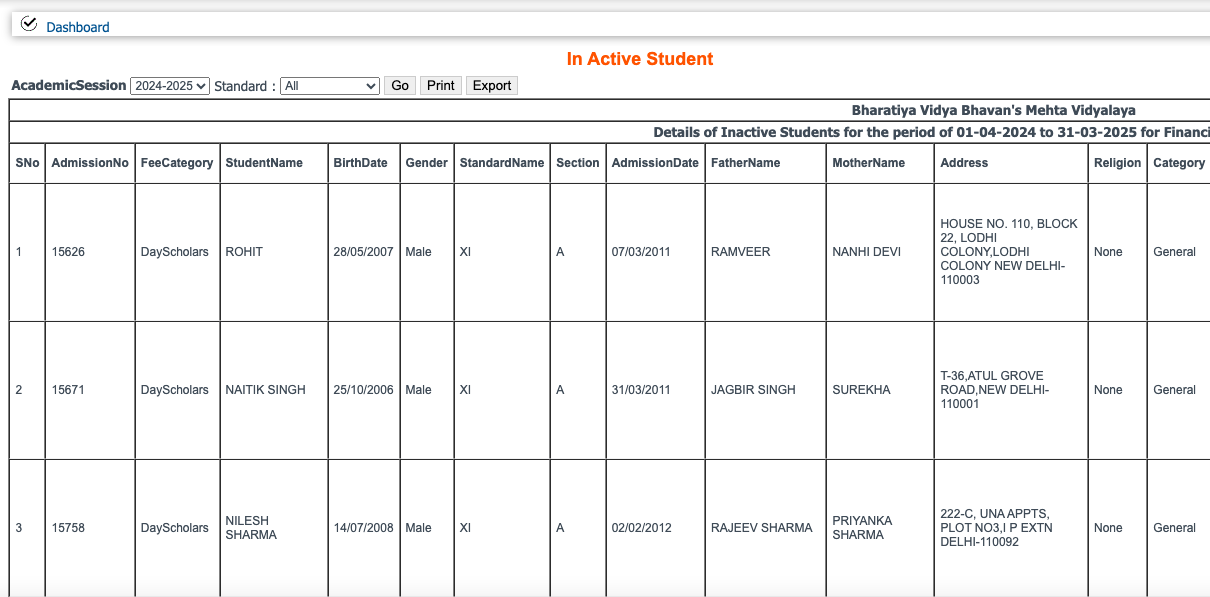
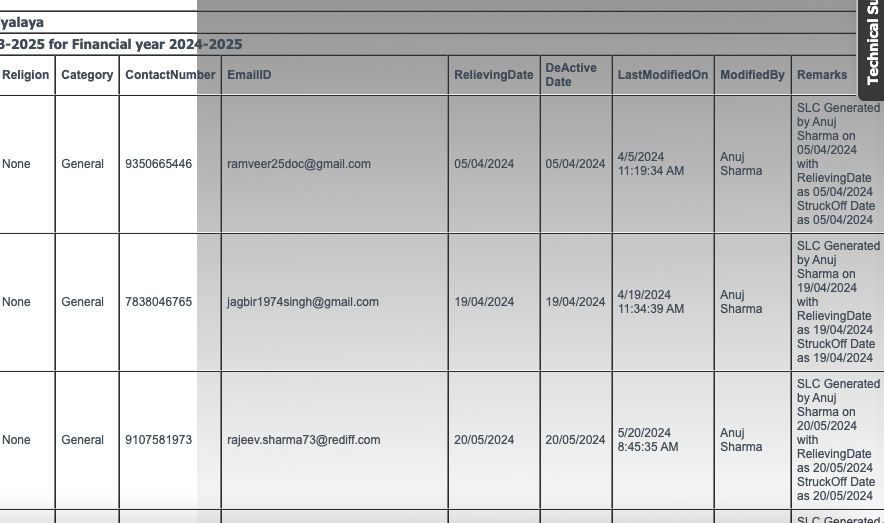
13. Inactive Student
Icon
Report Information:-
- Inactive students details
- Standard wise
- All standard
Process:-
Click on the icon choose academic session, standard and click on Go button.
14. Student Complete Details
Icon
Report Information:-
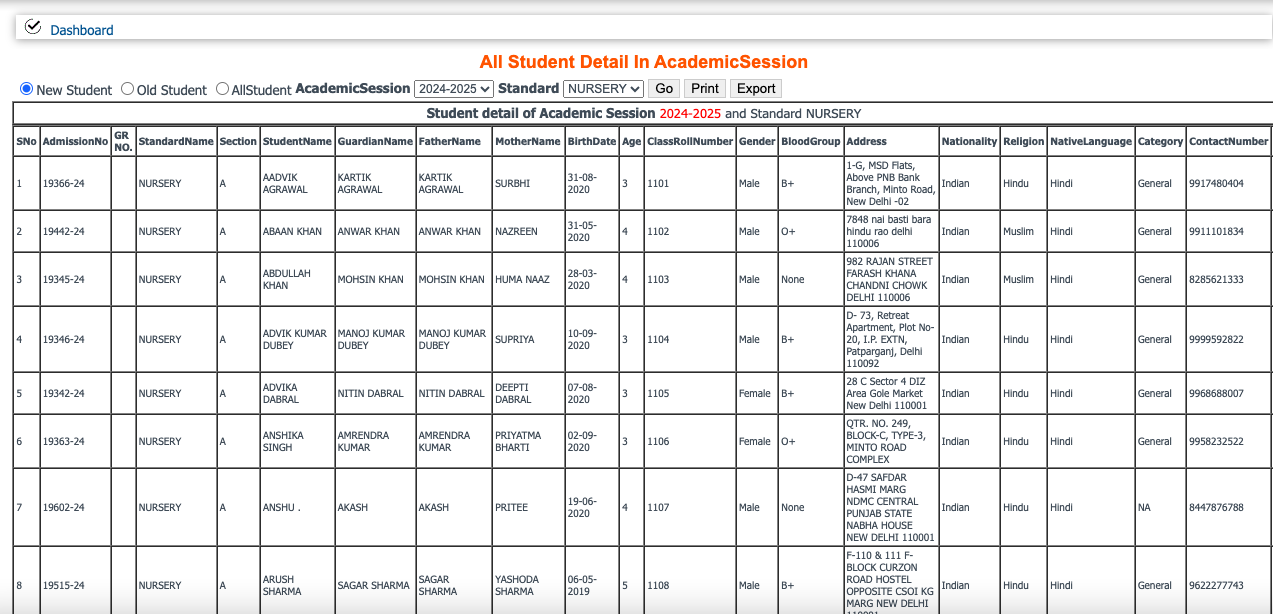
- Standard wise New Admission student details
- Old Admission student report
- All student standard wise and all standard details
Process:-
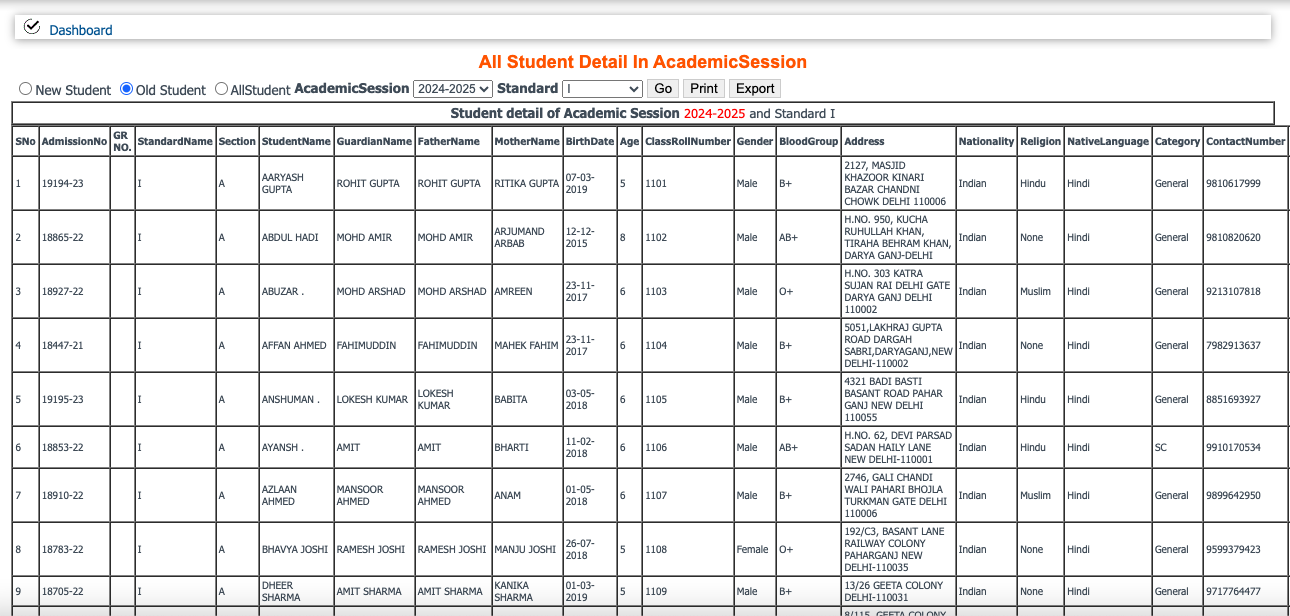
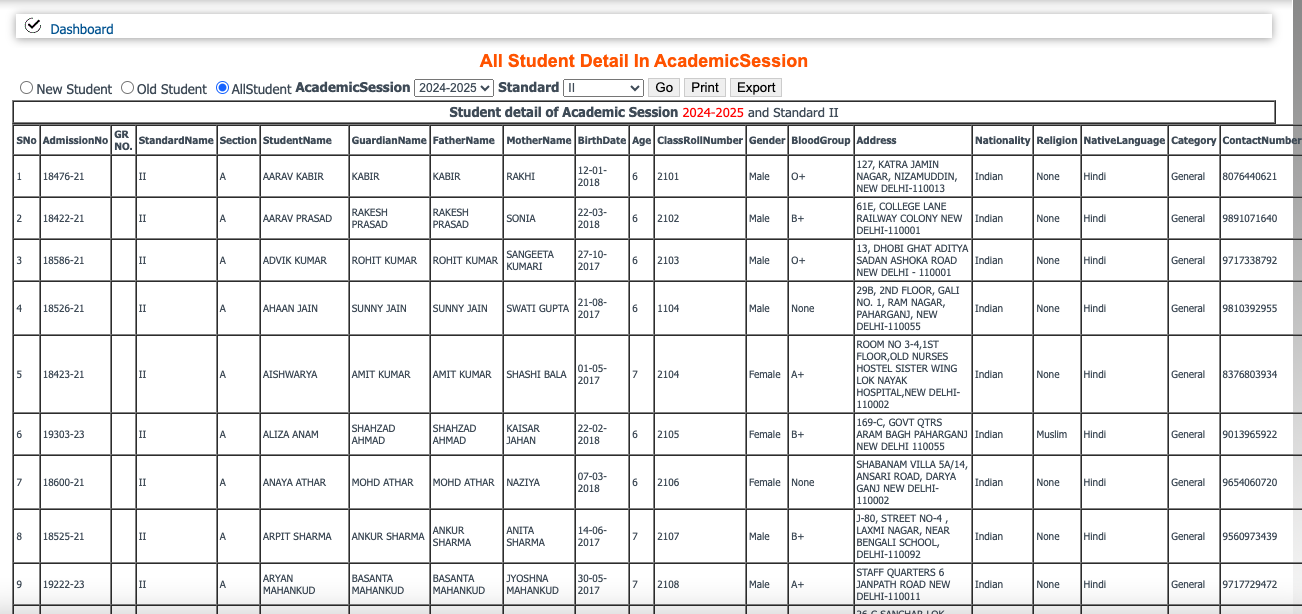
Click on the icon select the radio button according to your requirement the choose the academic session, Standard and click on Go button.
Outcome:-
New Student
Old Student
All Student
Was this article helpful?
That’s Great!
Thank you for your feedback
Sorry! We couldn't be helpful
Thank you for your feedback
Feedback sent
We appreciate your effort and will try to fix the article