Introduction
Effective resource management is fundamental to the smooth functioning of educational institutions. The store module, integrated within the institution’s administrative software, offers a comprehensive solution for managing inventories, tracking supplies, and ensuring that resources are available when needed. This module is designed to streamline the procurement, storage, and distribution processes, providing several key benefits.
Benefits of Store Management
- Streamlined Inventory Management
- Efficient Procurement Processes
- Enhanced Resource Distribution
- Real-Time Inventory Tracking
- Cost Control and Budget Management
- Supplier Management
Icon
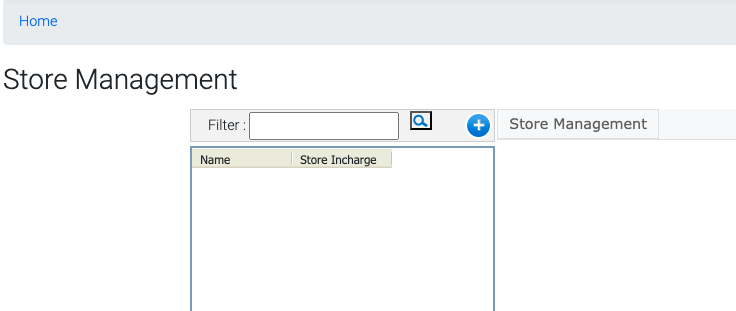
Step-1 # Store Creation
To create a store click on the icon now click on the "+" icon to create a store
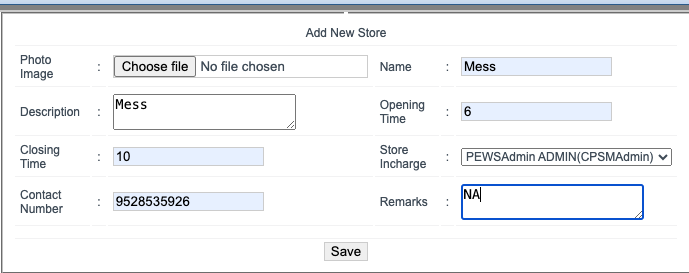
After click on the "+" icon a pop-up windows comes now fill the details & click on the Save button
Step-2 # Store Management Dashboard
Click on the Store Management
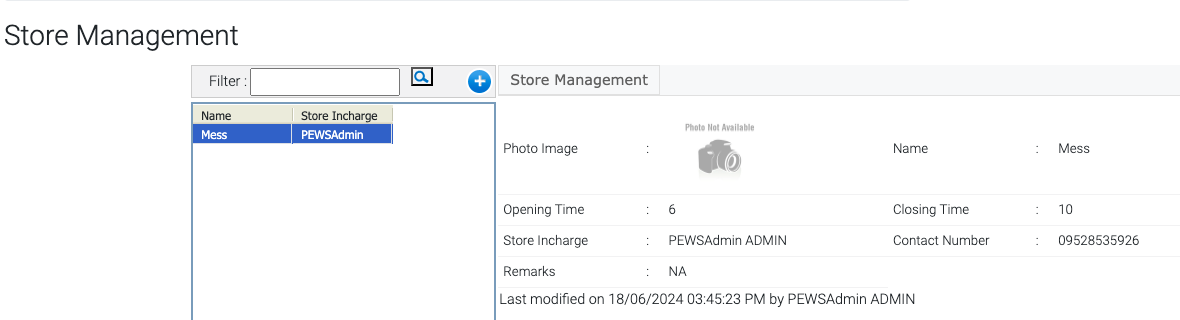
Store Dashboard
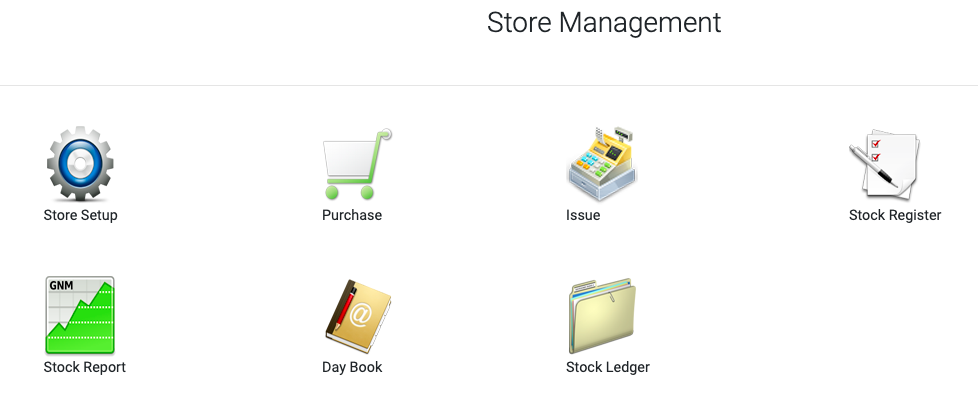
Step-3 # Store Setup
Icon
Process-
Add Category
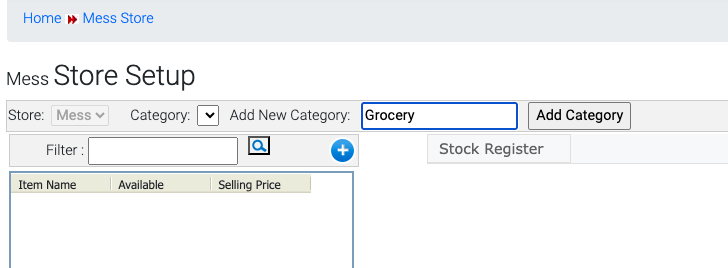
From this icon you can create category according to you. Click on the Icon now put the category name like (Grocery) and click on Add Category. Same process you can do for add other categories
Add Items
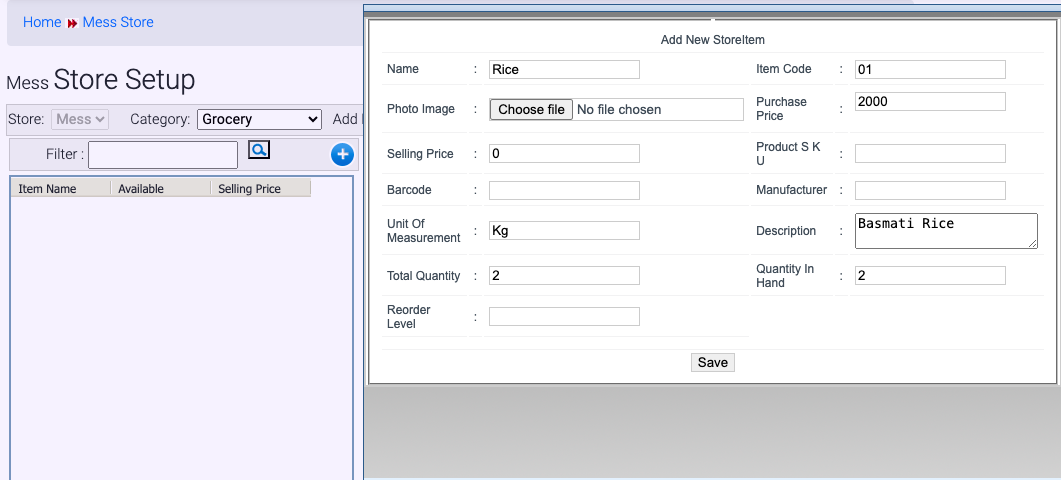
After category creation we need to add items on the respective categories for that click on the "+" icon after click a pop-up window comes now put the details & click on save button.
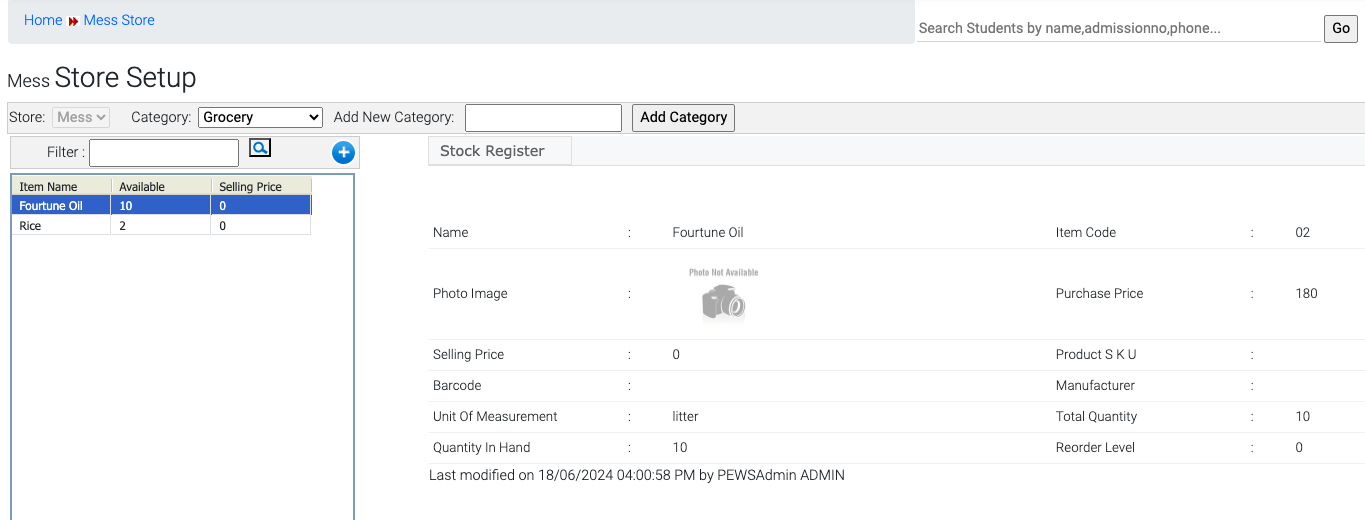
After save all items listed on the respective category
Step-4 # Issue Items
Icon
Process-
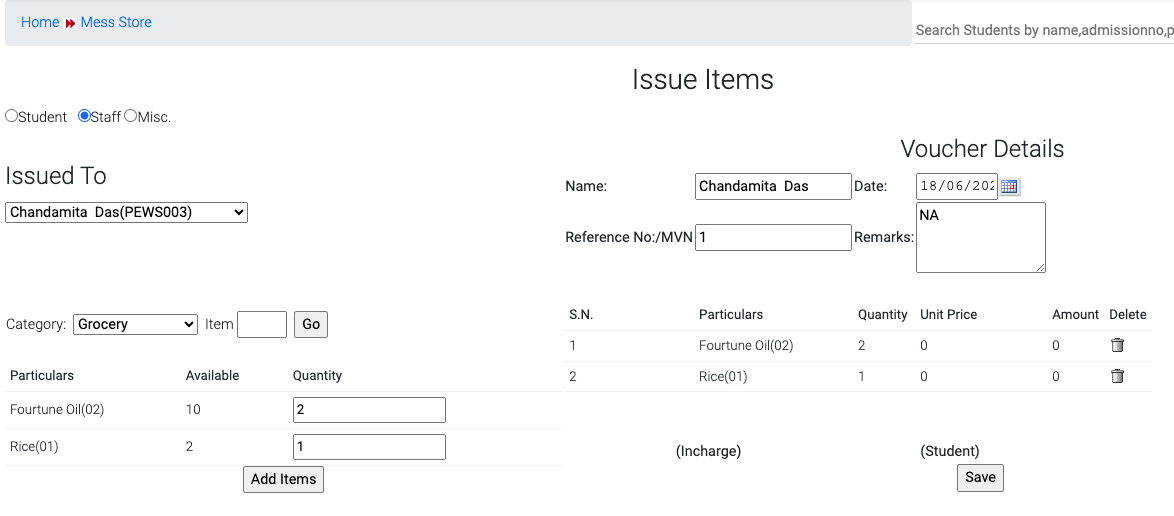
Click on the Icon now choose whom you want to issue the item like Student or Staff now choose the staff name from the Issued To drop-down then select the category and put the quantity as you can see in the screenshot. After the fill the Voucher Details like MVN number remark and click on Save button
Note- You can also print the voucher
Step-5 # Purchase Item
Icon
Process-
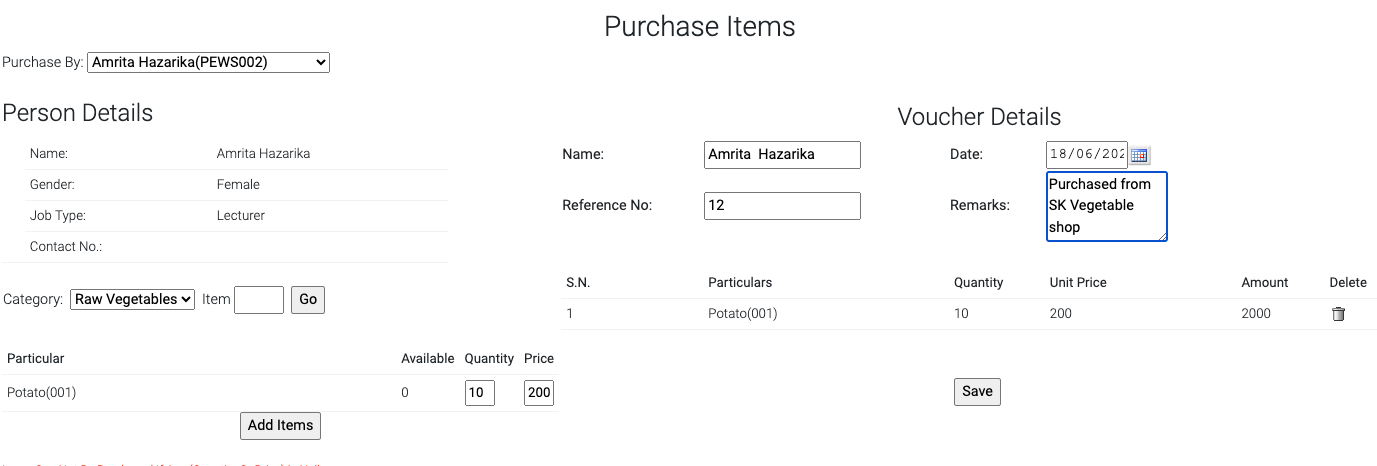
Click on the Purchase Icon. Now select the staff name who purchase the item then select the category and put the quantity and price of the item which is purchased & click on Add Items. After this update the voucher details & click on Save button
Was this article helpful?
That’s Great!
Thank you for your feedback
Sorry! We couldn't be helpful
Thank you for your feedback
Feedback sent
We appreciate your effort and will try to fix the article